
Business Entity Info Connector
Introduction
Business Entity Info Connector adds actions in Business Central to create or update:
- Customers from web service data
- Vendors from web service data
- Customer/Vendor bank accounts from web service data
The extension reads data from the Krajnik Business Entity Information Database through OData and helps reduce manual data entry errors.
What This Extension Adds
Setup Page
- Page: Business Entity Database Setup
- Fields:
- Url: OData endpoint for the Business Entity service
- Username: Service username
- Password: Service password
- Fields:
- Actions:
- Test Connection
- Data Mapping
- Actions:
Customer Actions
Available on Customer List and Customer Card:
- New Customer from Web
- Update Customer from Web
Vendor Actions
Available on Vendor List and Vendor Card:
- New Vendor from Web
- Update Vendor from Web
Prerequisites
Before users can retrieve data:
- Install and publish the extension.
- Ensure users have permission to:
- Open setup pages
- Create/modify customers or vendors
- Create/modify bank accounts
- Ensure users have permission to:
- Obtain valid service credentials (URL, username, password).
Initial Setup
- Open Business Entity Database Setup (use Tell Me).
- Enter:
- Url
- Username
- Password
- Enter:
- Choose Test Connection.
- Confirm message:
- Success:
Test Connection Successful.
- Success:
- Failure:
Test Connection Failed.with last error text.
- Failure:
- Confirm message:
Default URL is prefilled by the extension and can be adjusted if needed.
Data Mapping
Open Data Mapping from setup.
This page lets you map source values from the service to Business Central values.
Typical use cases:
- Bank registration number to bank branch number
- Country code normalization
If mappings are missing, source values are used directly.
Reset Default Mapping
In Data Mapping, choose Insert Default Data to insert baseline mapping entries.
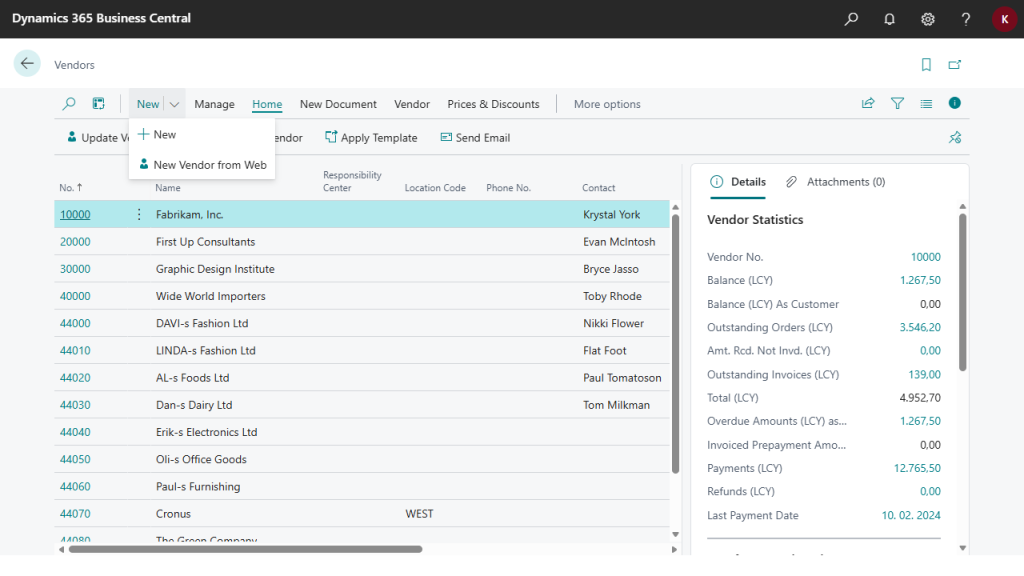
Create a New Customer or Vendor From Web
- Open Customer/Vendor List or Card.
- Choose:
- New Customer from Web, or
- New Vendor from Web
- Choose:
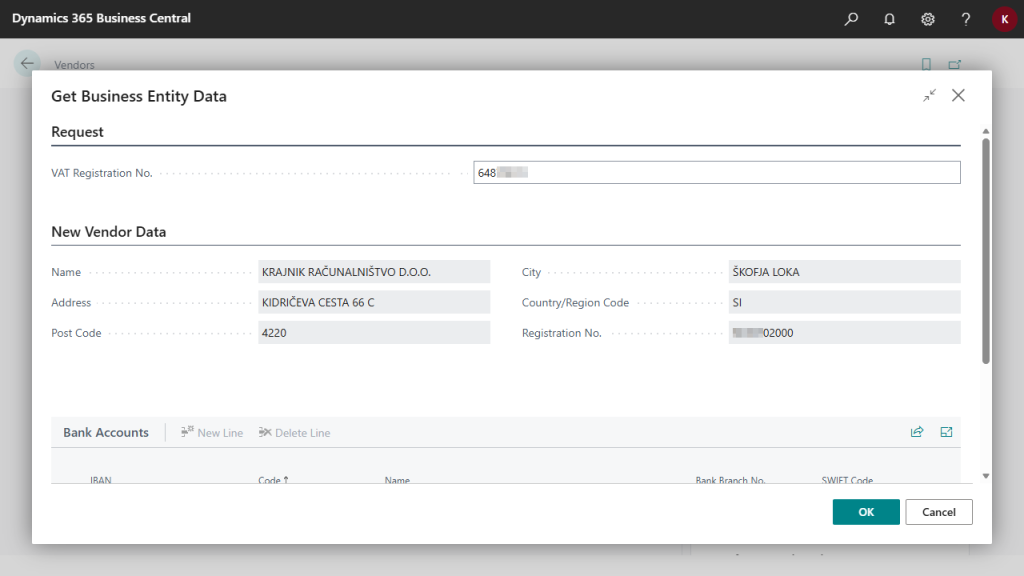
- In the dialog, enter VAT Registration No.
- Supported format:
########orSI########
- Supported format:
- In the dialog, enter VAT Registration No.
- Review proposed data.
- Confirm with OK.
The extension:
- Creates a new customer/vendor from template
- Copies retrieved identity/address fields
- Inserts or updates bank accounts
If a record with the same VAT number already exists, user is prompted to confirm whether to continue.
Update Existing Customer or Vendor From Web
- Open existing Customer/Vendor Card or List.
- Choose:
- Update Customer from Web, or
- Update Vendor from Web
- Choose:
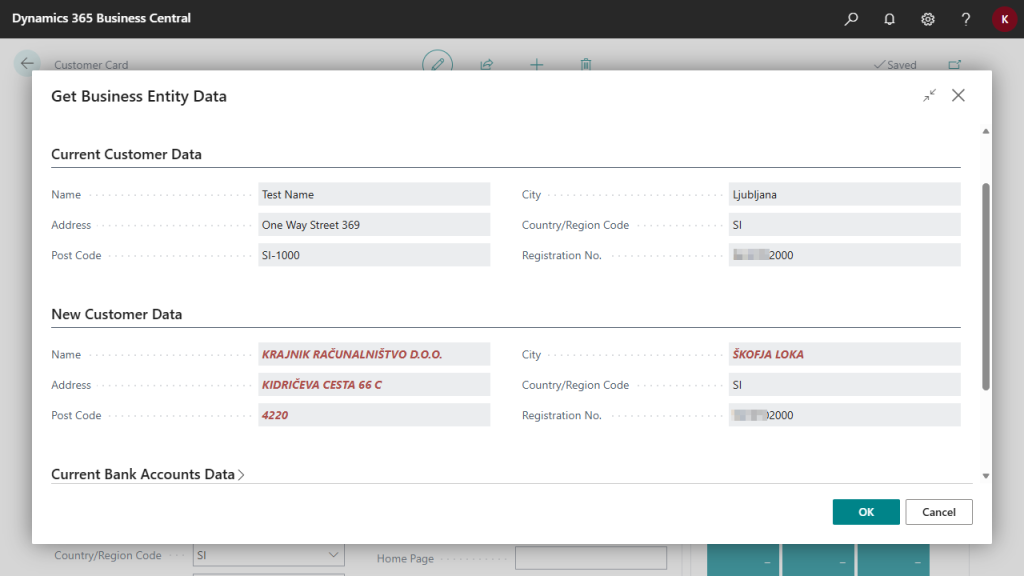
- Dialog opens with current values and retrieved values.
- Review highlighted differences.
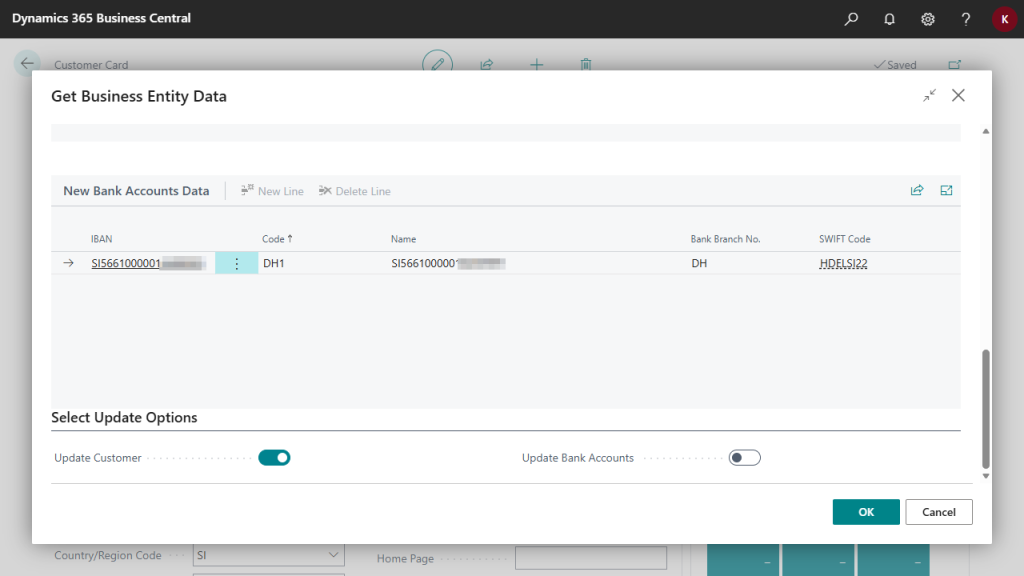
- Select update options:
- Update Customer/Vendor
- Update Bank Accounts
- Select update options:
- Confirm with OK.
Only selected data groups are updated.
Field Population Behavior
When data is retrieved, the extension populates these core fields:
- Name / Name 2
- Address
- Post Code
- City
- Country/Region Code
- VAT Registration No.
- Registration Number
Bank account data includes:
- IBAN (from Bank Account No.)
- Bank Branch No.
- SWIFT Code (normalized: 11-character code ending in
XXXis shortened to 8 characters)
- SWIFT Code (normalized: 11-character code ending in
Closed bank accounts from the source are ignored.
Known Validation and Error Messages
Users may encounter:
Entered VAT Registration No. is not in correct format.
No records were found.
Multiple records were found. This scenario is not supported.
Request to <url> failed.
Troubleshooting
Test Connection Fails
Check:
- URL is reachable from Business Central environment.
- Username/password are correct.
- Service user has rights to query the endpoint.
- Firewall/network access allows outbound call.
No Record Found for VAT Number
Check:
- VAT number format (with or without
SIprefix).
- VAT number format (with or without
- Entity existence in source database.
- Service response content for the specific VAT number.
Unexpected Country/Bank Values
Update mappings in Data Mapping and retry.
Operational Recommendations
- Run Test Connection after any credential/URL changes.
- Keep mapping data reviewed after legal/reporting changes.
- Use update mode before posting documents to keep master data clean.
Version
Document applies to extension version 25.0.10.0